The ACM Publishing System (TAPS) is an innovative framework that provides one-stop solution to submit your source files, review (and revise) the output, and approve the final version to be published. TAPS also provides an integrated helpdesk feature should you have any trouble with correctly laying out your article or interacting with TAPS. The TAPS solution will improve the publishing workflow in terms of communications with conference organizers or vendors and time-to-publish. We all benefit from TAPS in the delivery of accessibility and readability compliant delivery formats (XML/Responsive HTML5/EPUB (forthcoming.)
Google Chrome: v. 61-62
Mozilla Firefox: v. 54-55
Internet Explorer: v. 10.0-11.0
You will receive an email notification from TAPS giving you a unique link to use when submitting your manuscript file. This link will give you access to your author dashboard in TAPS.
No, your source file(s) (DOCX or LaTeX) must be submitted as a ZIP file setup according to the specific instructions given.
The ZIP file can contain 3 folders:
PDF: This folder contains the PDF output of your manuscript. It is not mandatory to provide this folder.
Source: This folder contains the final source file (MS Word or LaTeX.) This folder must contain all necessary files/resources that are required to generate the final published formats. It is mandatory to provide this folder.
Supplements: This folder contains the supplementary material that needs to be available at the time of online publication. The content of this folder will not appear in the published PDF version. It is not mandatory to provide this folder.
After you have setup the folder(s), you the create the ZIP file for uploading to TAPS.
Yes. The ZIP file name should be <Proceeding Acronym>-<Paper ID>.zip. (At the top of your author dashboard, TAPS displays the following information: the proceeding's acronym, the paper ID number, and the title of your paper.) You will also have received an email notification from TAPS specifying the file name you must use for the ZIP file.
Please also see the information available under "General Instruction and Information" on your TAPS author dashboard.
Yes. TAPS will accept a ZIP file size of 10MB or less. For larger file sizes it is recommended that you submit your ZIP file via the specific link provided as: Click here to upload <file_name>.zip file.
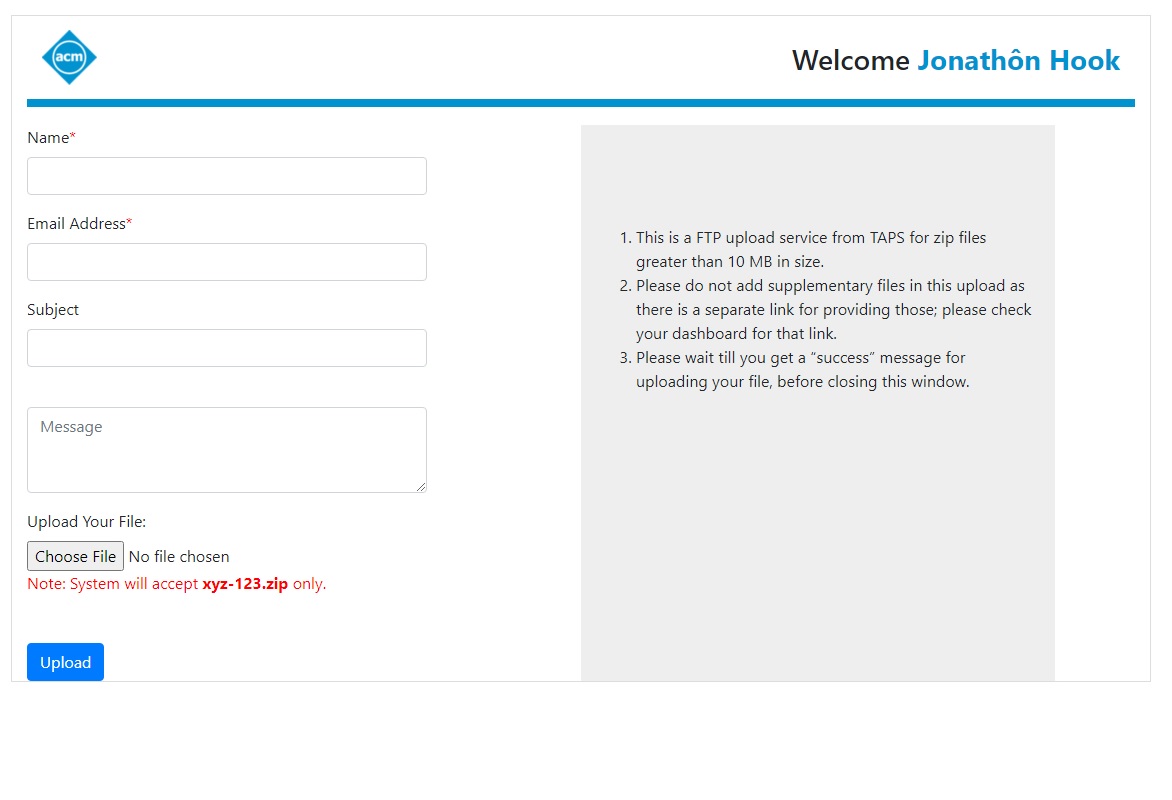
After completing the upload process, the system will show the following confirmation message:
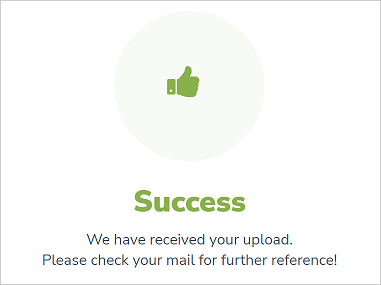
Your files are now in TAPS for processing and you will receive an email confirming this as well.
TAPS will perform an initial validation on the files and, if applicable, will show the error message(s) on your author dashboard as shown in the following screen shot:
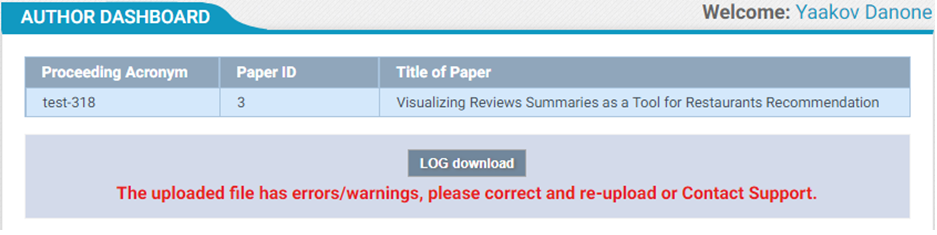
Click on the "LOG download" button to obtain the detailed information for the error generated. The following is a screen shot of an example error log:
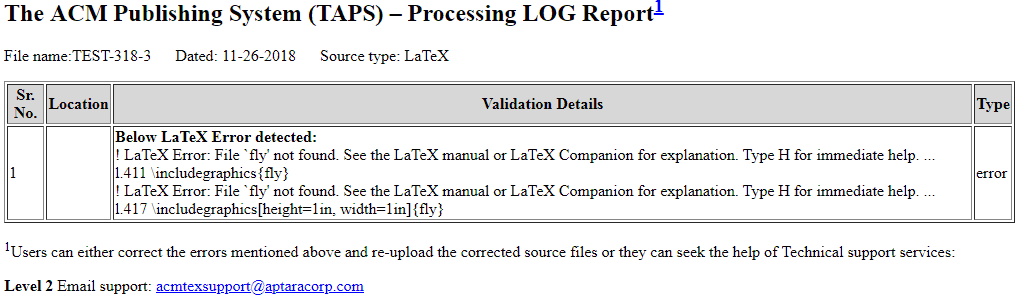
Please correct the specified error(s) and then re-submit the corrected version of your source file in the ZIP file structure for subsequent processing. If you are unable to resolve the error(s) on your own, you may request help from confsupport@aptaracorp.com.
After successful processing of your MS Word source file you will receive a PDF proof of your article via email. The TAPS author dashboard will also show the output files on your author dashboard (within the "Download File Here" box at the right)-to correct your text for any layout issues, please follow the instructions as detailed in the following screen shot:
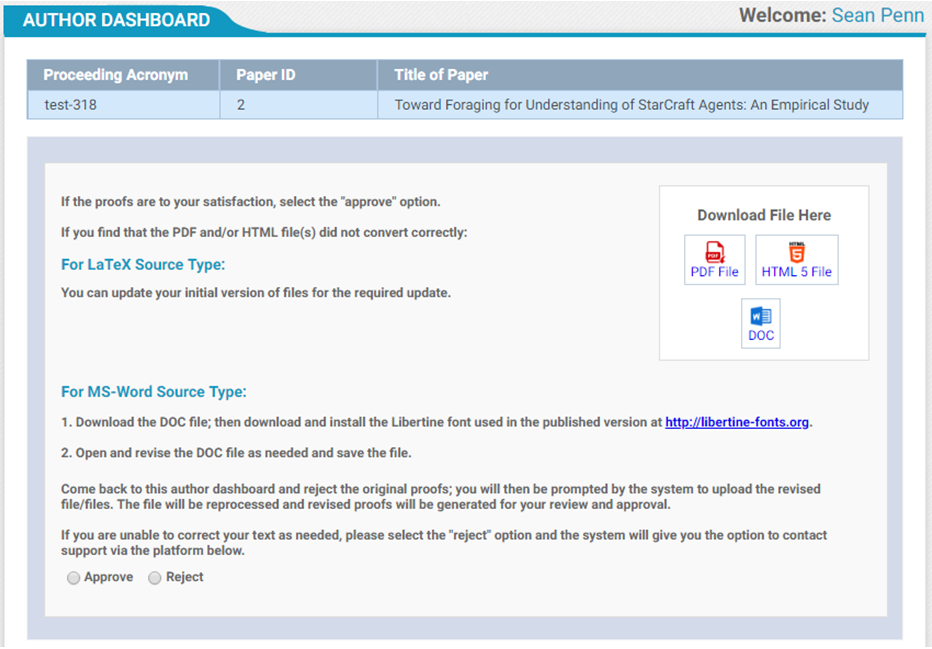
For any layout related issues in the HTML output, please contact confsupport@aptaracorp.com with the details of the issue in the HTML version.
After the successful processing of your manuscript file you will receive the PDF output via email and the TAPS author dashboard will show the following output files on your author dashboard: PDF, HTML5, DOC, and LOG.
The LOG file will provide the details regarding the successful processing as well as the list of warning messages that occurred during the processing of your manuscript file. Please see point number 10 above to resubmit your source files post-correction to resolve warning messages.